
Potassium Executor
How to use?
DANGER
System Requirements
- Windows 11 (24H2)
Download
- Join the Potassium Discord server
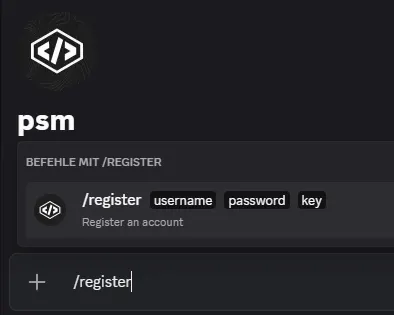
- On the psm bot DM’s, use
/registerthen/download
Media
Troubleshooting & Error Guidelines
DANGER
READ BEFORE OPENING A TICKET Failure to follow these steps will result in no support.
Mandatory Checks
Before reporting any error, make sure ALL of the following are true:
- You are running Windows 11 24H2 or 25H2OTHERWISE WE WILL NOT HELP YOU → https://www.microsoft.com/en-us/software-download/windows11
- You have Visual C++ Redistributables installed → https://learn.microsoft.com/en-us/cpp/windows/latest-supported-vc-redist
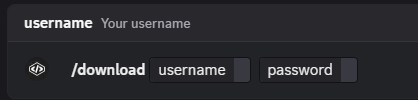
- You are using the latest version of Potassium → DM the bot with
/downloadto receive the official download link - You have already tried all common solutions listed below
Common Errors & Solutions
Channel Build Mismatch
Cause: Roblox version does not match the required channel. Fix: → Go to https://rdd.weao.gg/ → Click Download Latest Version → Use the Roblox version that gets installed
WARNING
DO NOT OPEN A TICKET ABOUT THIS If this channel is red, the issue is already known: https://discord.com/channels/1289988589052104846/1344419248113455124
Could Not Find a Part of the Path
Cause: Potassium was launched incorrectly. Fix: → Extract the Potassium ZIP → Run the executable directly from File Explorer
DANGER
SHORTCUTS OR START MENU LAUNCHES WILL NOT WORK
Mismatched HWID (Roblox)
Cause: The script you are using is bound to a different HWID. Fix: → Reset your HWID inside the script you are using
DANGER
WE ARE NOT SCRIPT SUPPORT OPENING A TICKET ABOUT THIS WILL RESULT IN A TICKET BAN
Mismatched HWID (Potassium)
Cause: Your Potassium HWID has changed. Fix: → DM the bot with /reset_hwid
DANGER
WE DO NOT BYPASS COOLDOWNS OPENING A TICKET ABOUT THIS WILL RESULT IN A TICKET BAN
SSL Connection Error / HTTP Timeout
Cause: Network or ISP-related issue. Fix: → Use a VPN (recommended: https://one.one.one.one/) → Other VPNs may also work
Injection Error 2
Cause: Roblox instance still running in the background. Fix: → Close all Roblox processes → Use Process Hacker or System Informer → Reopen Potassium and inject again
Injection Error 3
Cause: Antivirus interference. Fix: → Disable your antivirus → Reopen Potassium
Injection Not Working (General Fix)
Follow all steps in order:
- Disable Windows Defender
- Add the Potassium folder to Defender exclusions
- Reinstall Roblox
- Clear
%temp% - Clear Roblox cache