
General Tutorial
Alt Detection (Prevent Account Bans)
INFO
- Download and install TMAC – Technitium MAC Address Changer
- Open TMAC and randomize the MAC address for your Ethernet interface.
- Open Roblox in a private/incognito browser window.
- Log in with an account not banned from the game you want to join.
- Join the game as usual.
Weao – Downgrade Roblox Version
Downgrade Roblox
- Go to either:
- Weao Website → Click Previous under Windows Version
- RDD Website → Click Download Previous Version(No difference between the two sites)
- Extract the downloaded
.zipfile. - Open
RobloxPlayerBeta.exeand inject as usual.
- ❗ If you get Error Code 280, the version is too old and can no longer be downgraded.
⚠️ Downgraded versions usually stop working ~4 days after a Roblox update. If it’s been longer, don’t expect it to work.
- Join their Discord for updates: Weao Discord
- Note: If an exploit has updated for the latest Roblox version, a downgraded version may no longer work.
Version Mismatch (LIVE Fix)
Download Fishstrap from fishstrap.app → Click Download.
Launch setup → Click Install → Click Configure Fishstrap's Settings.
In the Deployment tab:
- Set Channel to
Production. - Set Automatic Channel Change Action to
Never Change.
- Set Channel to
Save settings and launch.
- Video tutorial: Streamable Video
Alternative fix:
- Go to RDD Latest Version → Click Download Latest Version.
- Extract
.zipand openRobloxPlayerBeta.exe. - Inject as usual.
Video / Website
- 🎥 Video Tutorial: YouTube
- 🌐 Website: https://rdd.weao.xyz/
Fix "Channel Build Mismatch" Error in Roblox / Bloxstrap / Fishstrap
What is a version hash?
A version hash is a unique identifier Roblox uses to mark a specific build of the client. Exploits or externals may require a specific version hash to work.
Step 1 – Access Local App Data Folder
- Press
Win + R. - Type
%localappdata%→ Press Enter. - Open the folder corresponding to your installation:
BloxstrapFishstrapRoblox
- Inside, open the Versions folder.
Step 2 – Download Required Roblox Version
- Go to RDD Website.
- Download the specific version you need using its version hash.
Step 3 – Find a Working Version Hash
- In Discord, go to channel <#1377854192097427547>.
- Use the command
/build-historyto see recent version hashes. - Select a version before the current one that worked with your exploit or external tool.
Step 4 – Replace the Current Version
- Extract the downloaded
.zipfile. - Navigate to the
Versionsfolder from Step 1. - Identify the folder name of the current version (long code = current version hash).
- Rename the extracted folder to exactly match the current folder name.
- Replace the existing folder with the new one.
💡 Tip: Backup the current version folder before replacing it.
- To check previous versions: Use
/build-historywith the bot <@1218229252692906089> in Discord. - Make sure the version hash is older than the current one.
- Video reference: Streamable
Unban Tmac Method - Error code 600
If you were banned with error code 600, this means the ban was manual. If your ban shows error code 267, you can ignore this guide and continue playing, since 267 is not a MAC address ban. 📺 Portuguese video tutorial available
To resolve a code 600 ban, download TMAC from the official website: https://technitium.com/tmac/
Step-by-step guide
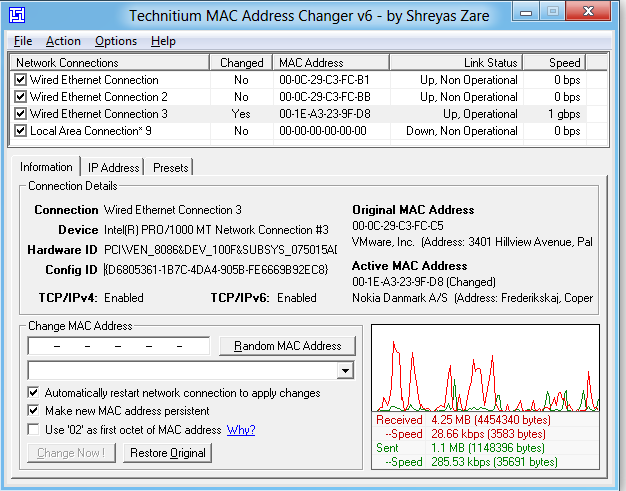
Follow the steps below to proceed. Once you download TMAC, this is what you will see when you open it:
Step 1 – Select your network adapter
Click on your network adapter. I am using Wi‑Fi, so I will select my Wi‑Fi adapter. If you are using Ethernet, select the Ethernet adapter instead. ⚠️ Make sure you choose the adapter that is Up and Operational.

Step 2 – Enable Random MAC Address
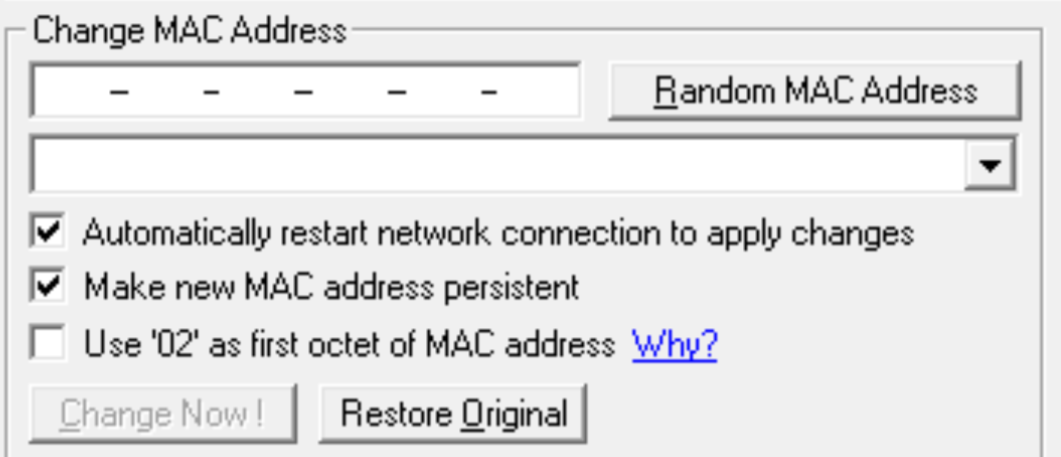
Scroll to the bottom and click Random MAC Address. Make sure this option is enabled.
Step 3 – Generate a new MAC address
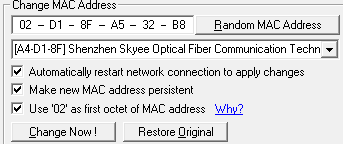
After clicking Random MAC Address, a new random MAC address will be generated, like this:
Step 4 – Apply the change
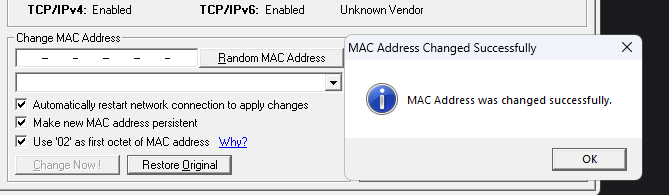
Click Change Now to apply the new MAC address. ⚠️ Do not close TMAC yet — there is one more step.
Step 5 – Verify the MAC address
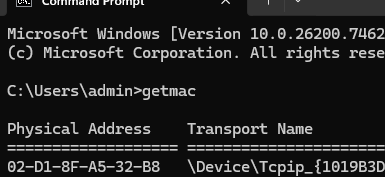
Open Command Prompt and type:
getmacAfter running the command, Command Prompt will display your current MAC address.
Step 6 – Confirm the change
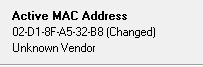
Make sure the Physical Address shown in Command Prompt matches the Active MAC Address displayed in TMAC.
If both addresses match, the change was successful.
Final notes
- If you get banned again with error code 600, repeat the steps above.
- It may be inconvenient, but this is the only option in that case.
Important: If you plan to play Cheating, it is recommended to change your MAC address beforehand. This helps avoid chain bans across multiple accounts, as Battle Royale modes are more likely to result in manual bans.